Environment Slides
JoinXR documents will often contain only ‘room scale’ objects (i.e. objects that fit inside a standard room). Your users might walk around the objects or even pick up and move them.
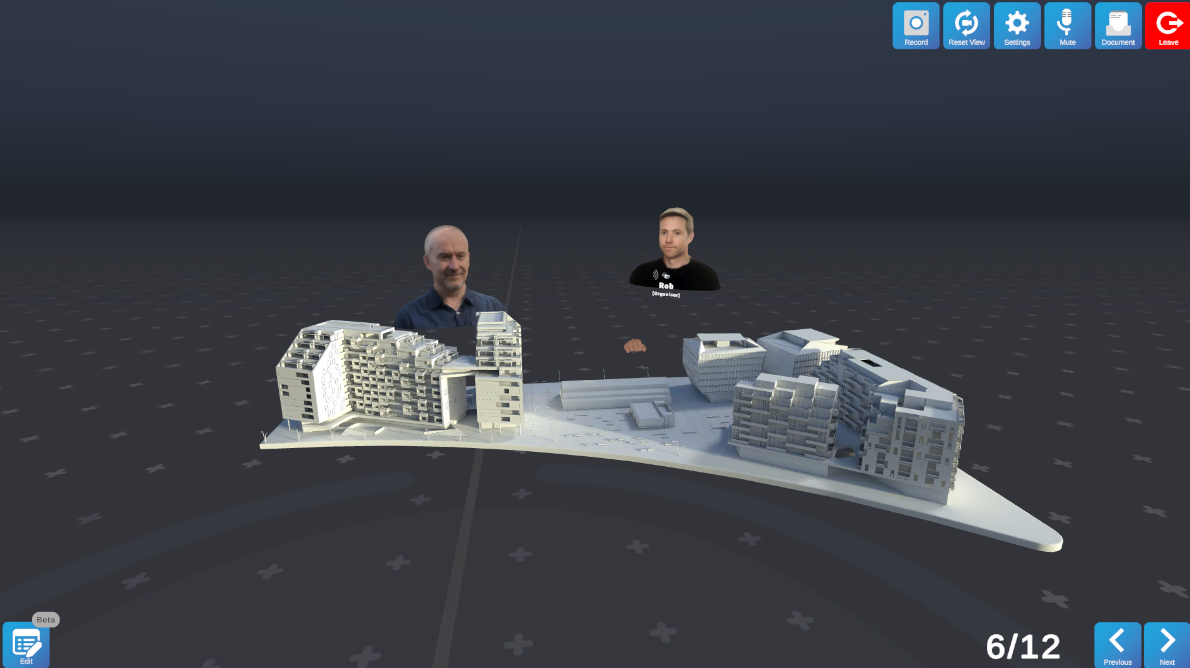
However, it’s also possible to have meetings that involve much larger objects like architectural models or a 3D building. We call objects like these ‘Environments’ and when working with them it’s easier to think about slides which move the users around the environment, rather than moving the environment around the users.
For this scenario, JoinXR provides a special slide mode called ‘Environment Mode’.
Walkthrough Video
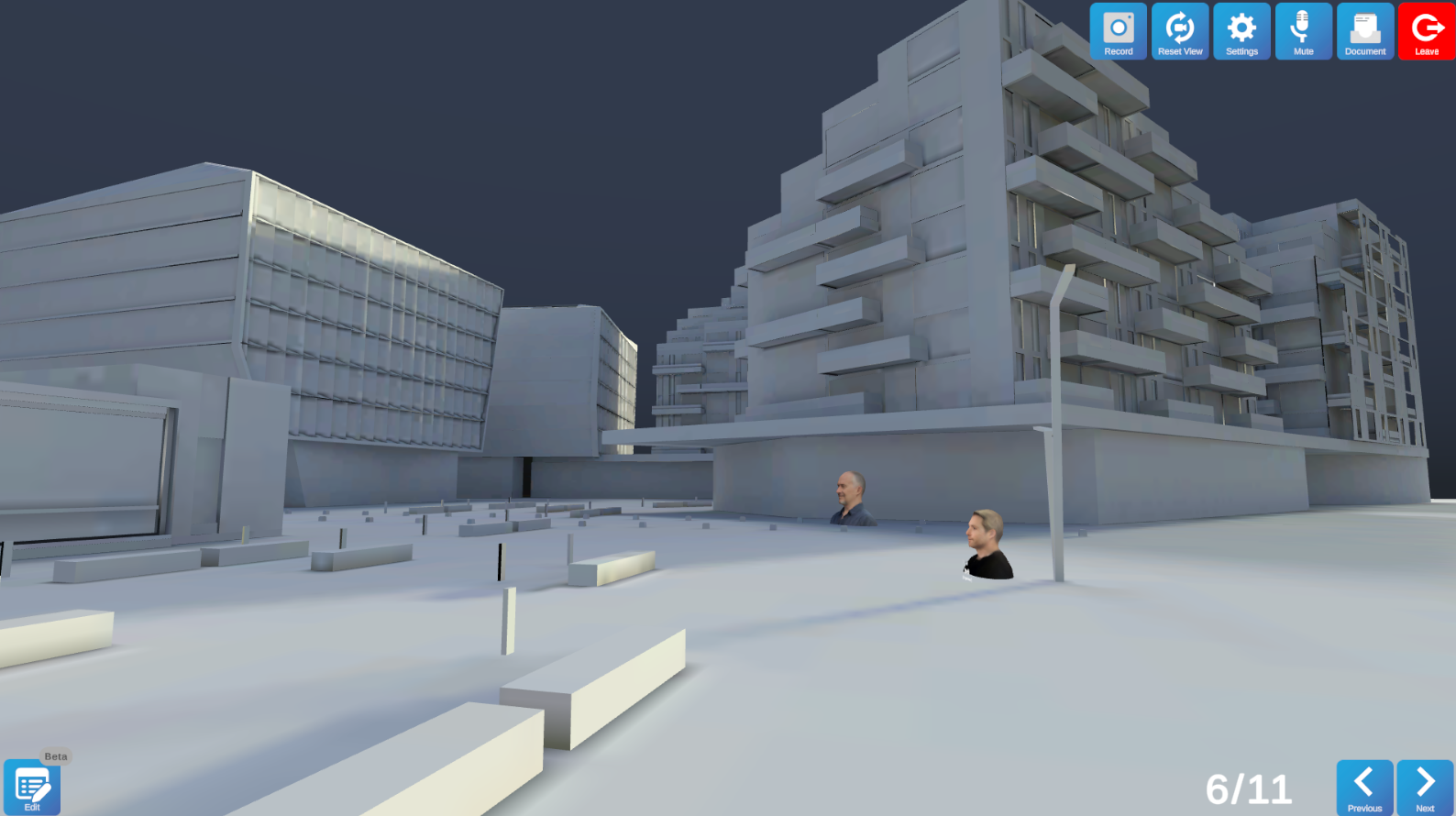
Section titled “Walkthrough Video”This video gives a walkthrough of using Environment Mode with some example content. If you prefer text and images, skip this and read below.
Setting up Environment Slides
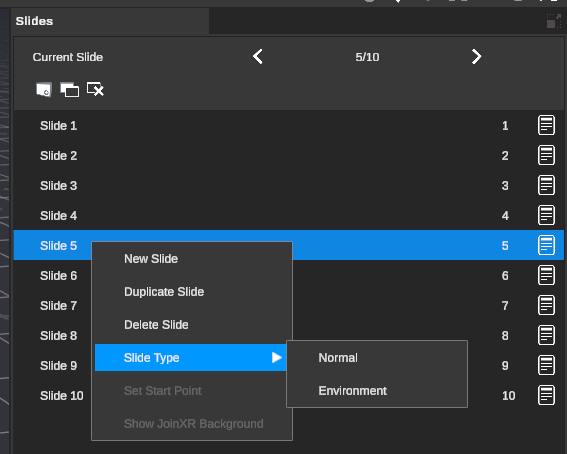
Section titled “Setting up Environment Slides”To enable, set the slide from Normal mode to Environment mode
- In headset go to Document > Edit > Slide Type on the hand menu
- In JoinXR Desktop right click on the slide and select Slide Type
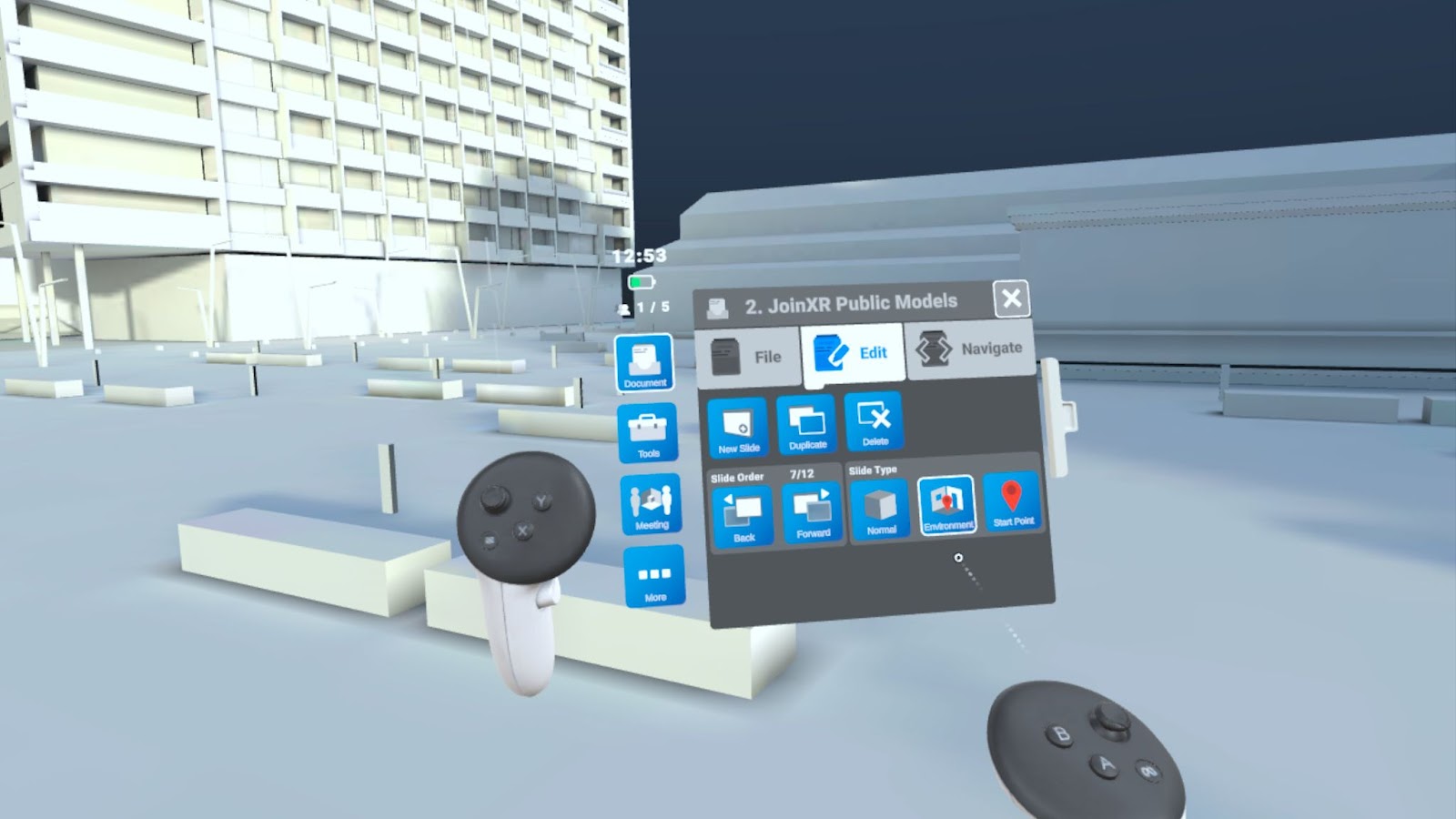
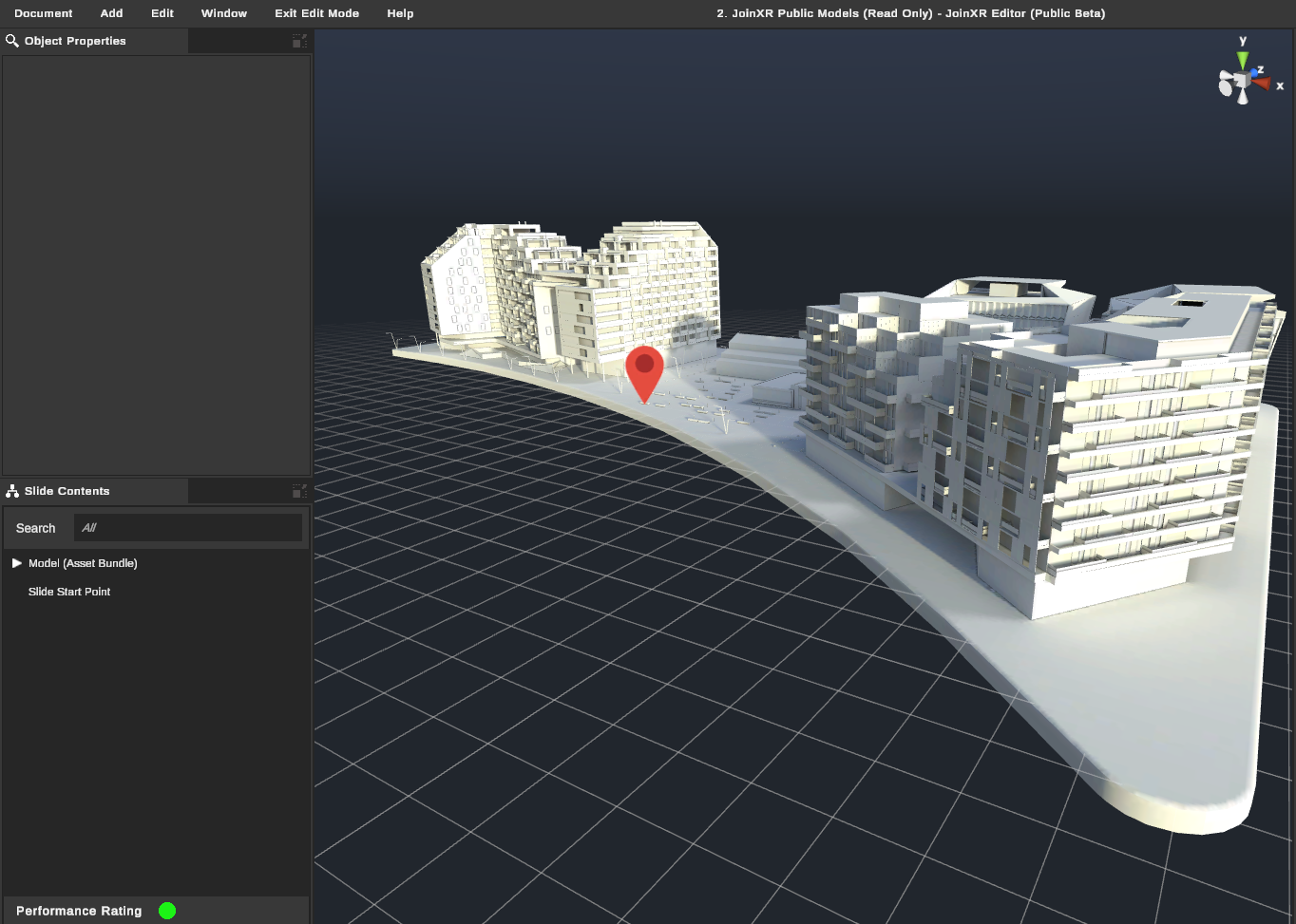
In Environment mode, each slide has a ‘start point’ which can be set to anywhere in the environment.
Once set, all users in the meeting will teleport to this spot upon entering the slide.
In JoinXR Desktop the slide start point appears as an object in the Slide Contents window
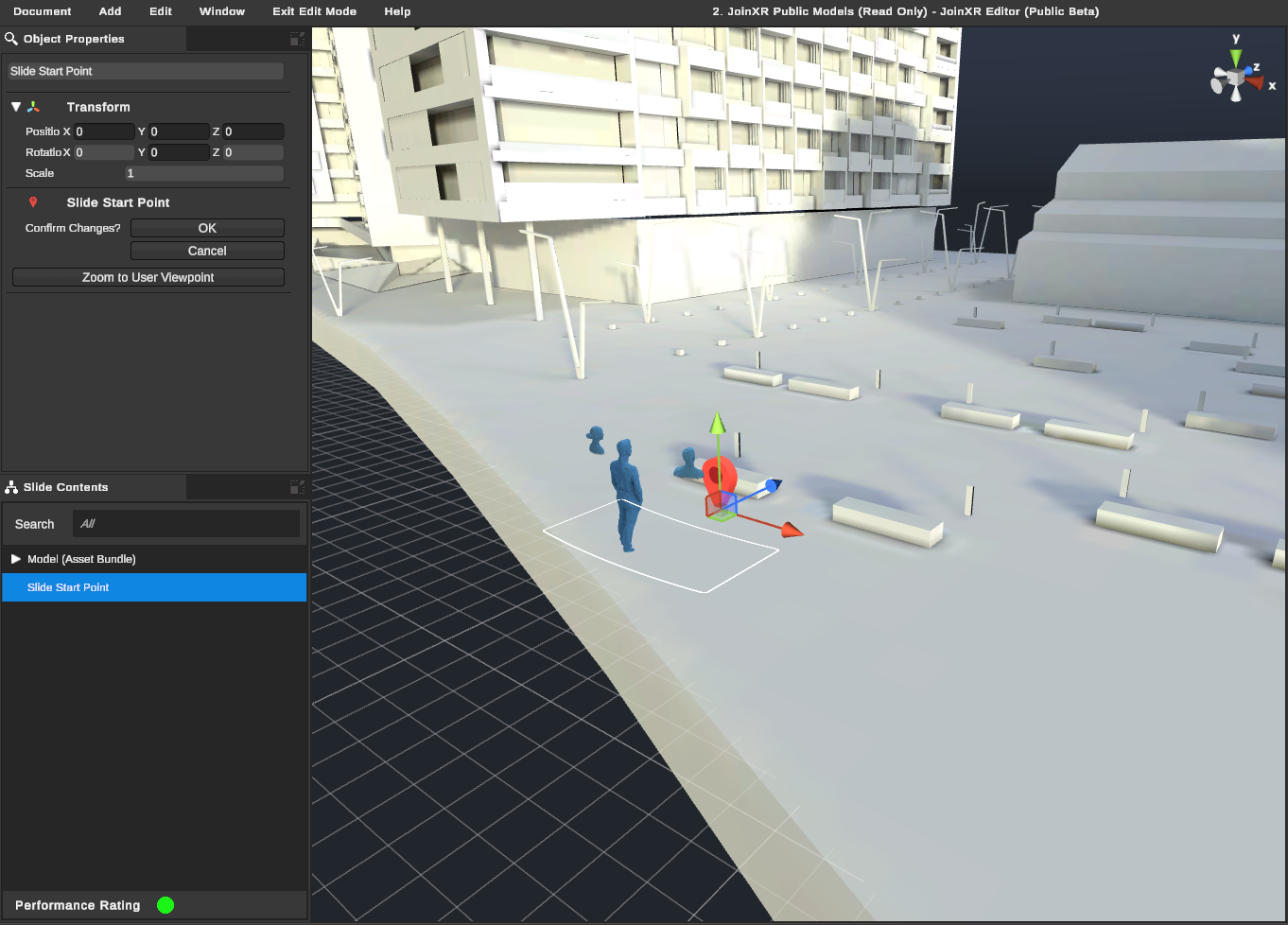
Select the start point and click ‘Edit’ to change its position and orientation, then OK or Cancel to confirm changes
Recall Users in Environment Mode Slides
Section titled “Recall Users in Environment Mode Slides”With start points set, users are free to teleport around the environment, upon entering the next slide, all users will be recalled back together at that slide’s start point.
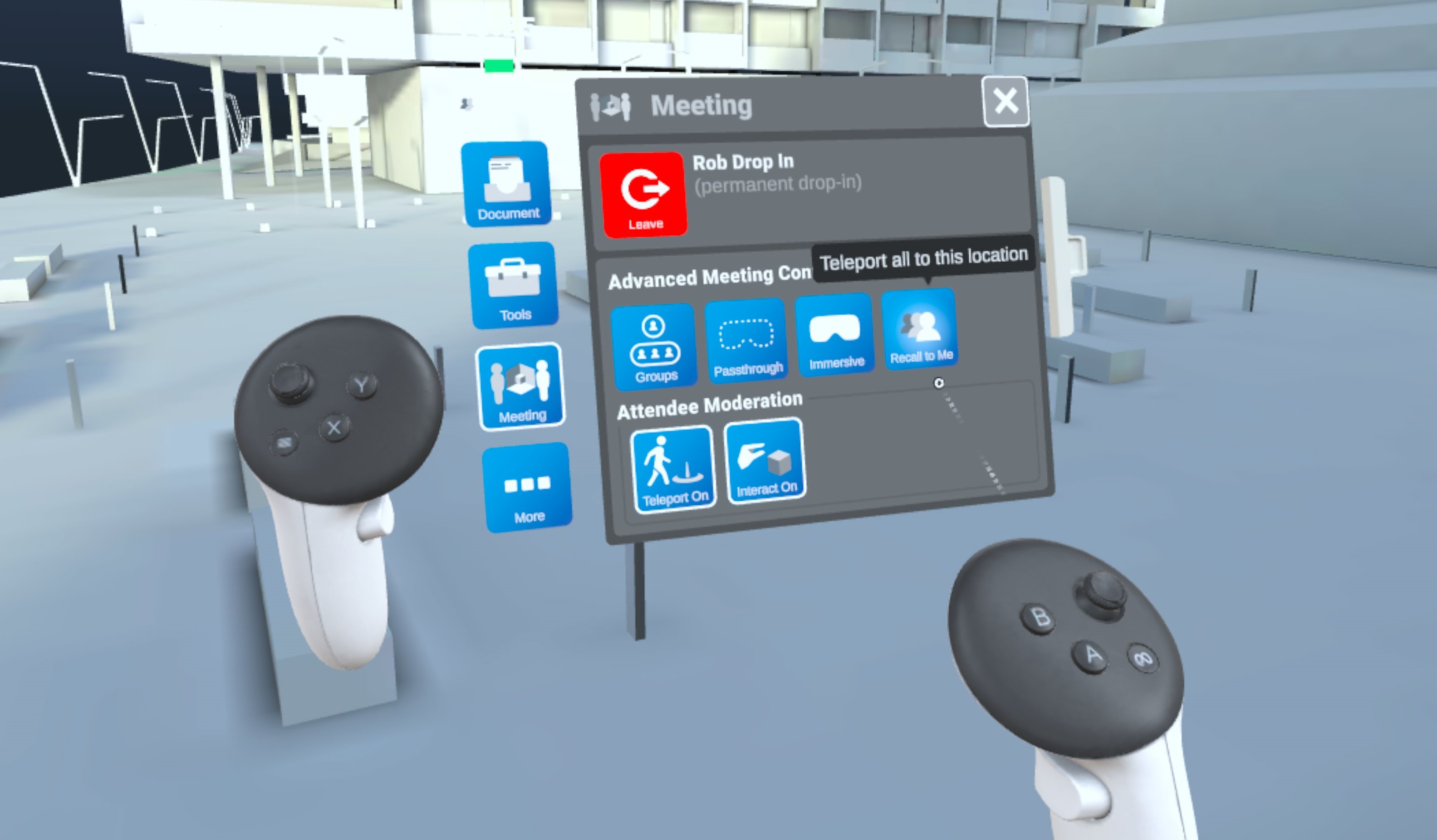
You can also manually recall all other users to your current location in a slide with the ‘Recall to Me’ button in the Meeting menu.