Collaboration Tools
JoinXR comes with a few useful extra tools you can use to collaborate in meetings.
They are all accessible from the [Hand Menu] > Tools menu. The tools menu has 3 modes, Select, Draw and Add.
Select
Section titled “Select”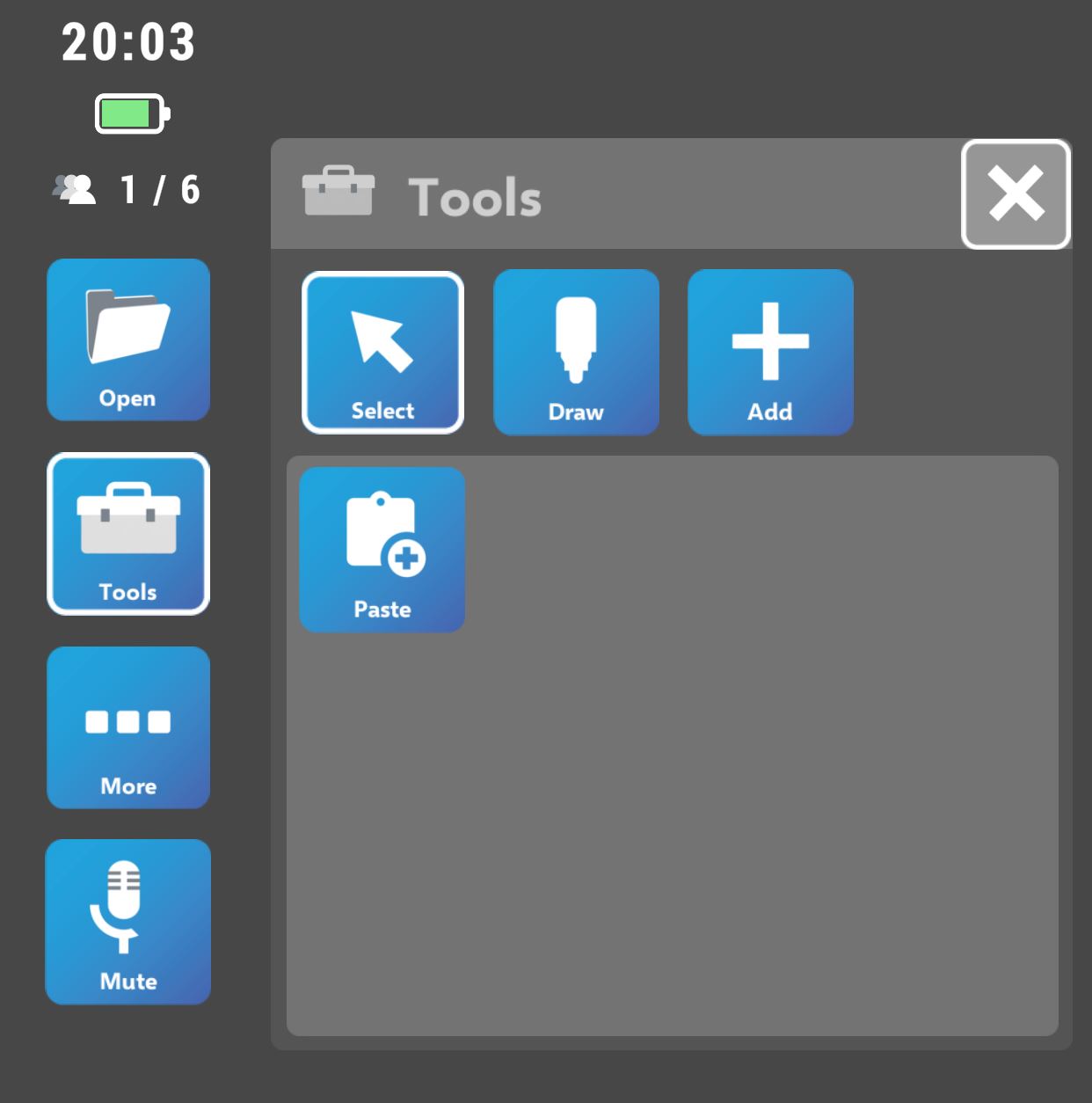
This is the default mode when you start JoinXR. It lets you select and move objects within JoinXR
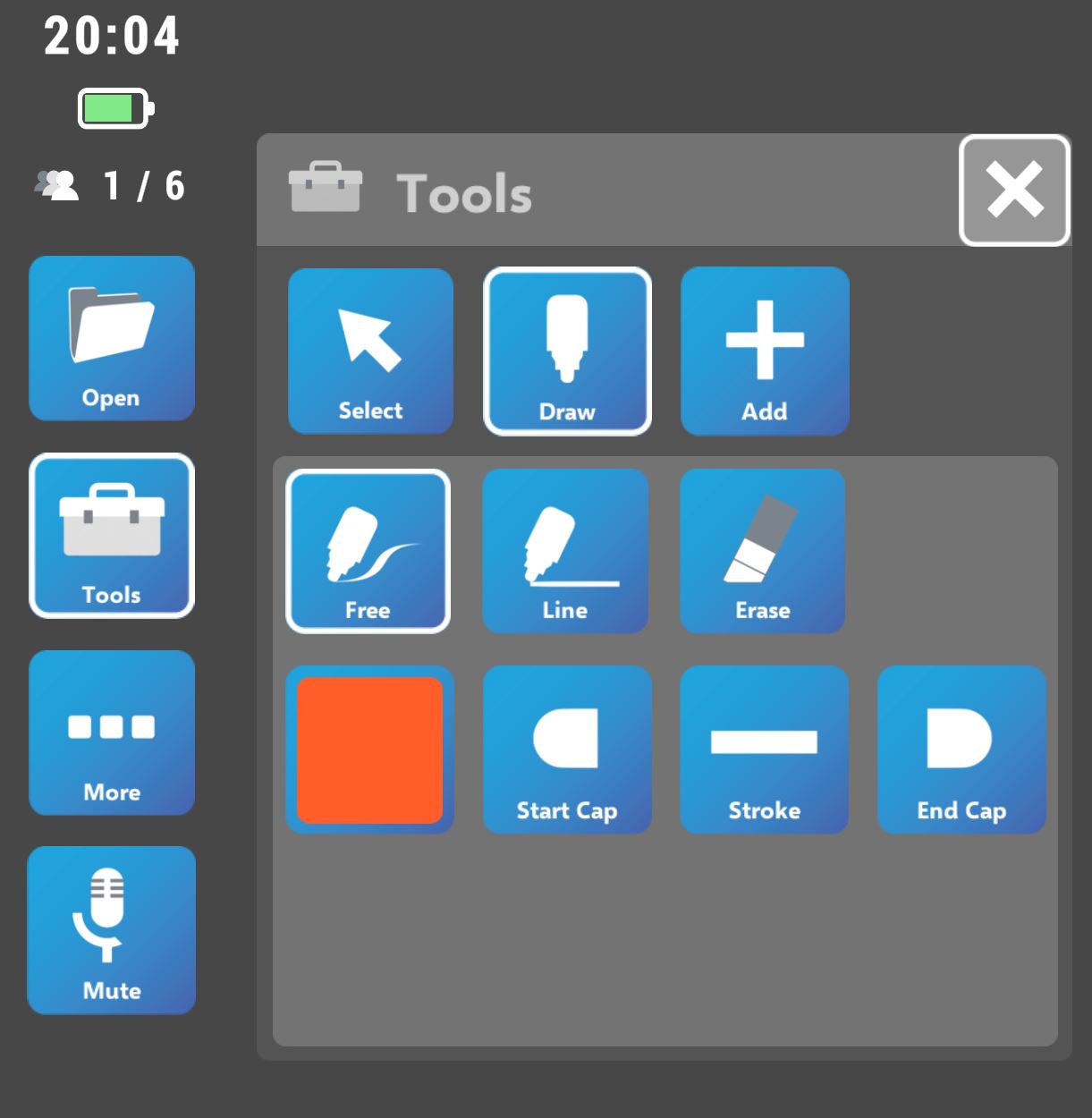
When in Draw mode you can choose to draw using the “Free” or “Line” tools or remove drawings using the “Erase” tool.
- Free - Freehand drawings, great for circling objects or sketching out ideas
- Line - Draw a straight line, connecting aspects of your presentation, or use it as a callout
With all the drawing tools, just tap and hold to draw, releasing to stop. You can repeat the gesture several times to create multiple pen strokes.
When using the “Free” or “Line” you can customize what your drawing looks like:
- Color - Choose from a palette of colors
- Start/End Caps - Select whether you want arrows at the start/end of your drawing.
- Stroke - Solid or dashed lines
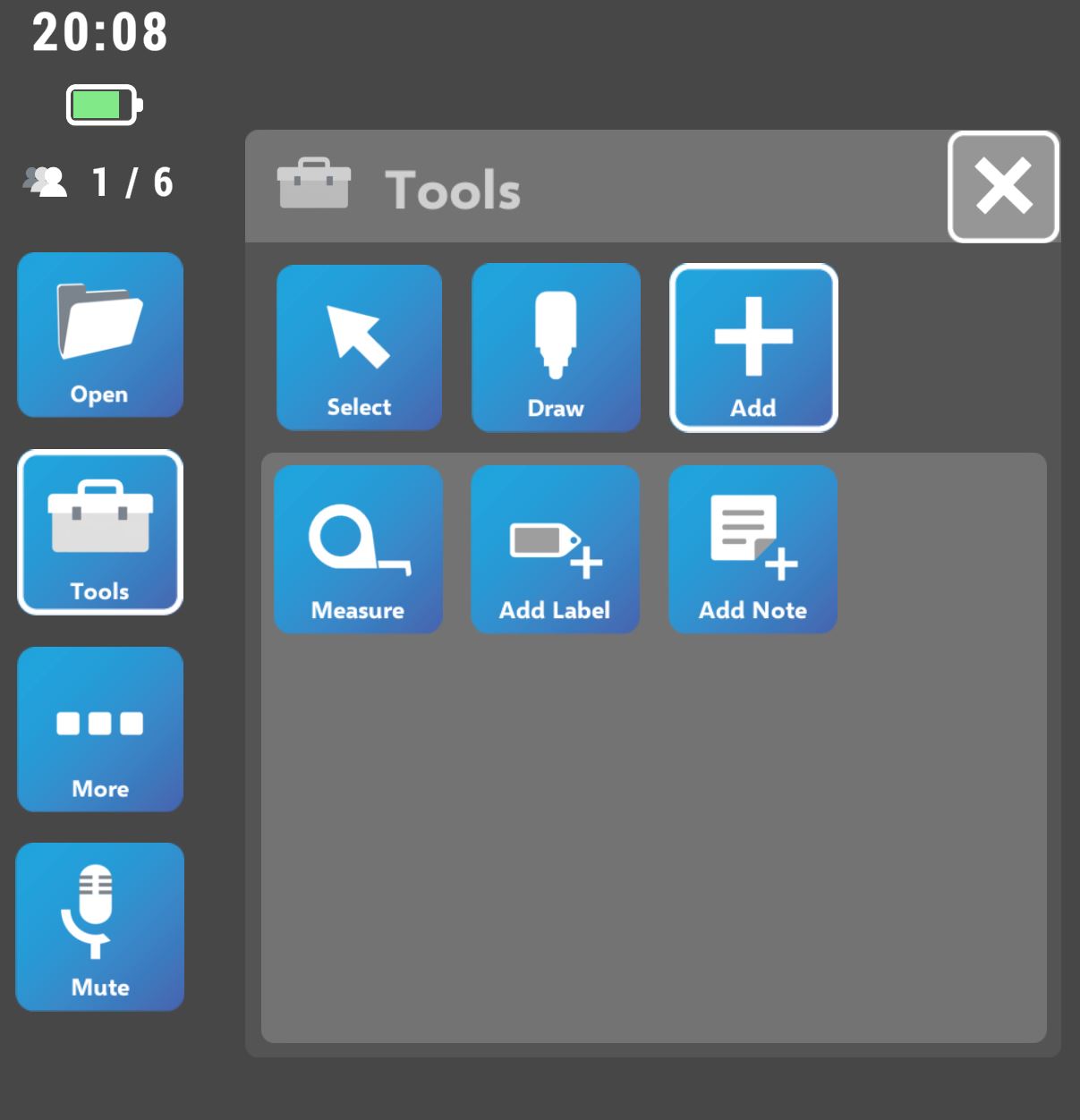
In Add mode, you can add 3 types of content directly from your immersive device, Measurement, Labels and Notes
Measurement
The measure tool allows you to take basic measurements in a meeting.
To create a measurement:
- Select ‘Measure’
- Tap once to start the measurement
- Move your hand to the desired end point (note the tap measure updates in realtime as you do this)
- Tap again to end the measurement
Once a measurement has been created you or any other user can pick up and drag the end or start points.
Delete a measurement using the context menu, as you would any other object in a meeting.
Add Label/Note
New Labels and Notes can be created with these buttons. Both are objects that can be moved, rotated or scaled like any other object in Join.
Both labels and notes can be created through speech-to-text dictation on device.
Labels are good for drawing attention to other things in the model, and they come with ‘kite strings’ that let you attach them to a precise point on a model or image:
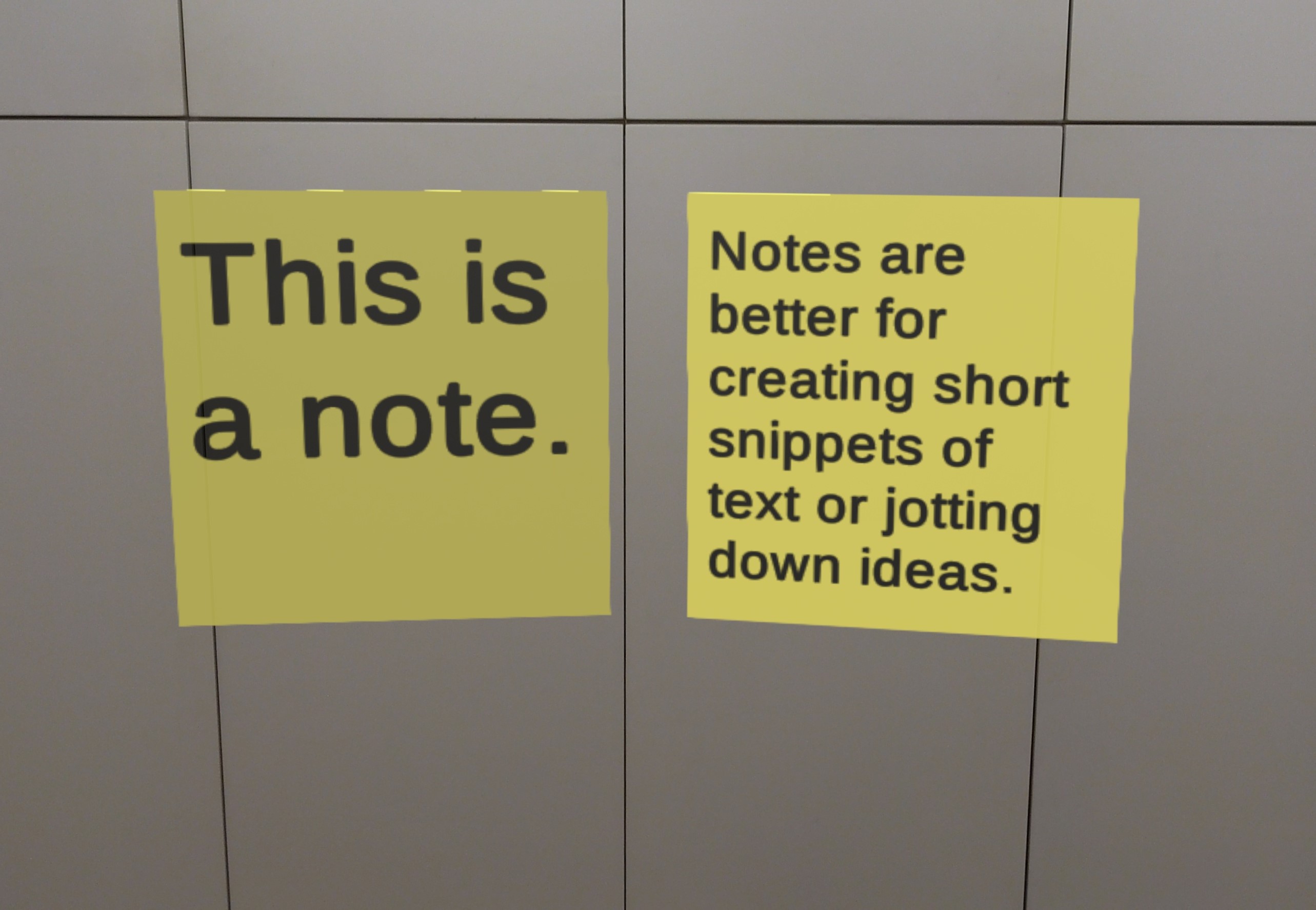
Notes are simpler objects that just contain some text. They are better for quick ideas or reminders.