
Content and Documents
Learn the basics of how 3D content works in JoinXR meetings.
You include 3D content in a JoinXR meeting by opening a JoinXR Document.
Documents are arrangements of 3D and 2D content. You can think of a document like a Powerpoint presentation. Just like such presentations, documents in JoinXR can range from very simple to very rich. All of the below are examples of documents in Join:
- A single image
- A single 3D object
- A sequence of 3D objects with different designs or colour schemes for the same product
- The same set of 3D objects arranged in a virtual shelving unit
- A complex 3D model of a building
- The same building model from different perspectives, some including images or videos for further explanation
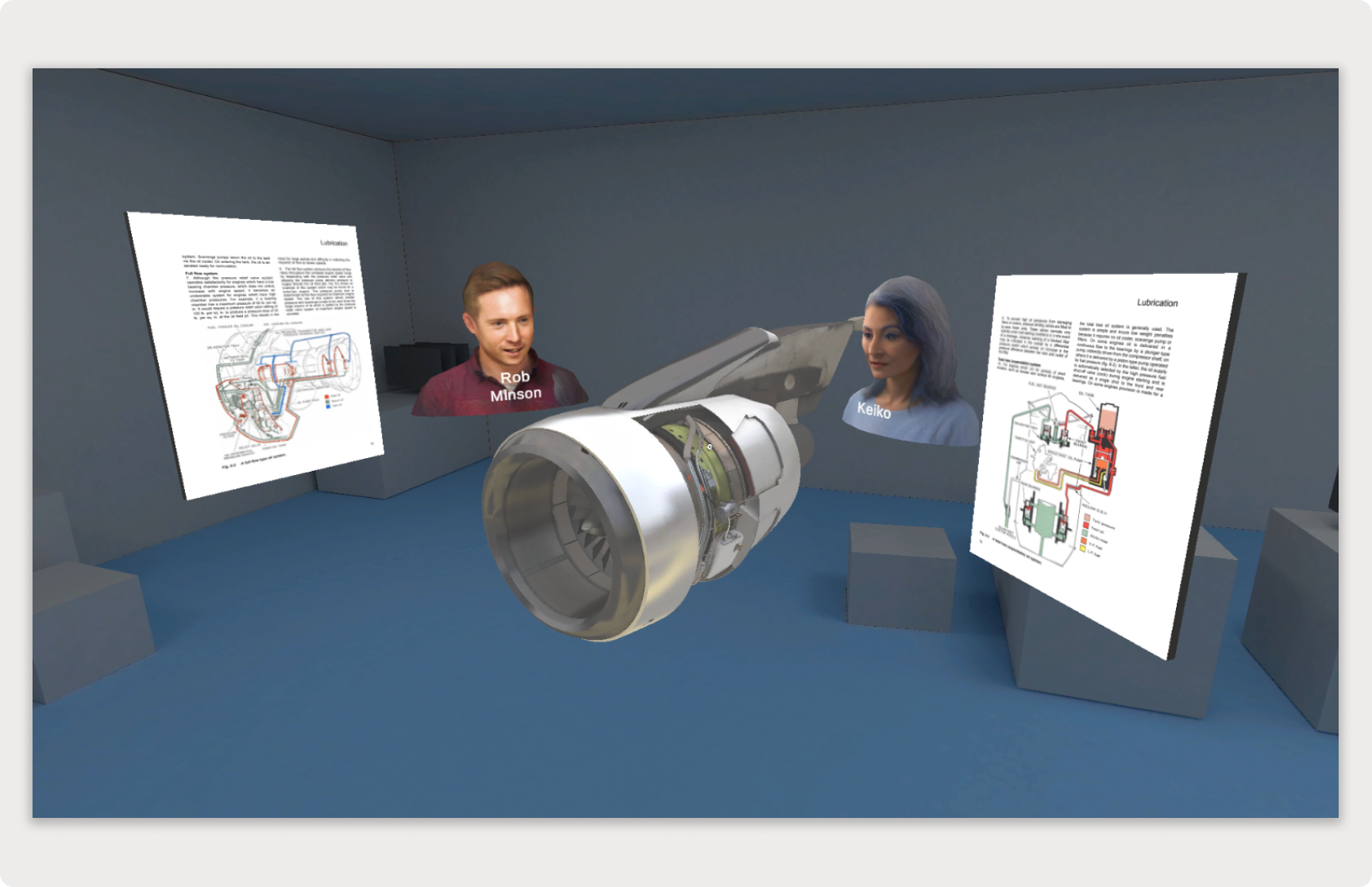
_Two users in a meeting with a document open. The document contains one 3D object and two PDFs, conveniently arranged for viewing:
_
Browsing and Opening Documents
Section titled “Browsing and Opening Documents”To open a JoinXR document, you must first be in a meeting
Go to Document > Open and select the document you wish to open. The document will open for everyone in the meeting simultaneously
To close a document, go to Document > Close. The document will close for everyone in the meeting
Only meeting organisers can close a document in a meeting.
In general usage, there’s no real reason to close a document, you can simply leave the meeting, or even just turn off your device.
Navigating Documents
Section titled “Navigating Documents”Once you have opened a document in a meeting you can navigate between slides by opening the menu and going to Document > Navigate
Using the left and right arrows to go back and forward respectively
Interacting with Content in a Document
Section titled “Interacting with Content in a Document”Users can interact with content in a number of ways. Most types of object can be moved, rotated and scaled with standard gestures. Any user in the meeting can do this at any time.
_Moving objects:
_
Rotating objects:
Scaling objects:
Objects can also be duplicated and deleted.
Duplicating objects:
Deleting objects: