
Create a Meeting
Learn how to create a multi-user immersive meeting in JoinXR.
To create a meeting in JoinXR you need to be registered in an organisation. Alternatively, you trial JoinXR with our 30 day free trial or get in touch to register.
A meeting is a virtual space where you can open JoinXR documents and meet with other people. There are two types of meetings: Calendar and Drop-in. We will create a Drop-in meeting now. A Drop-in is a permanent meeting which you can join at any time. You can find more information on meetings here.
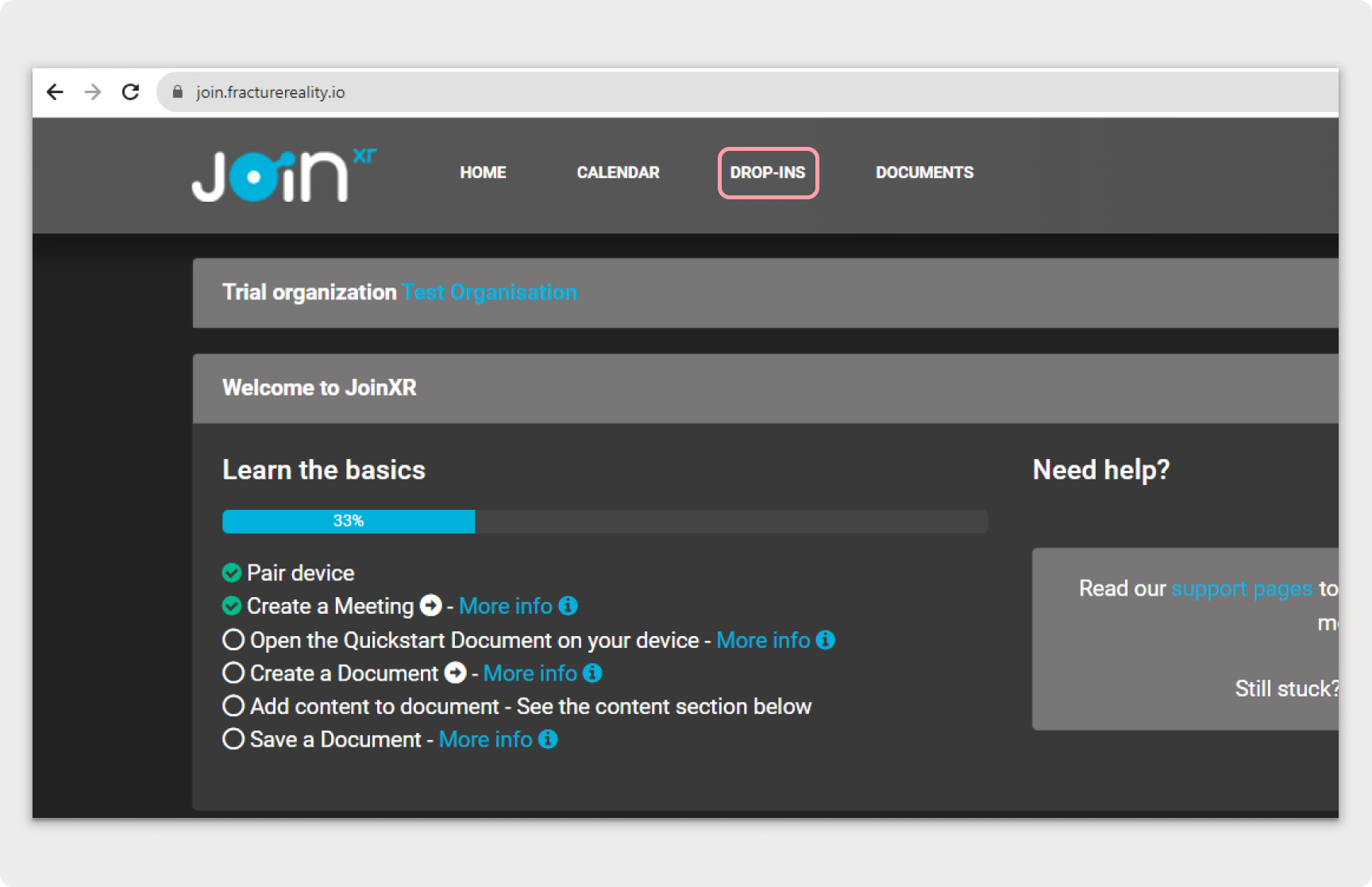
1. Select Drop-ins from the top menu bar
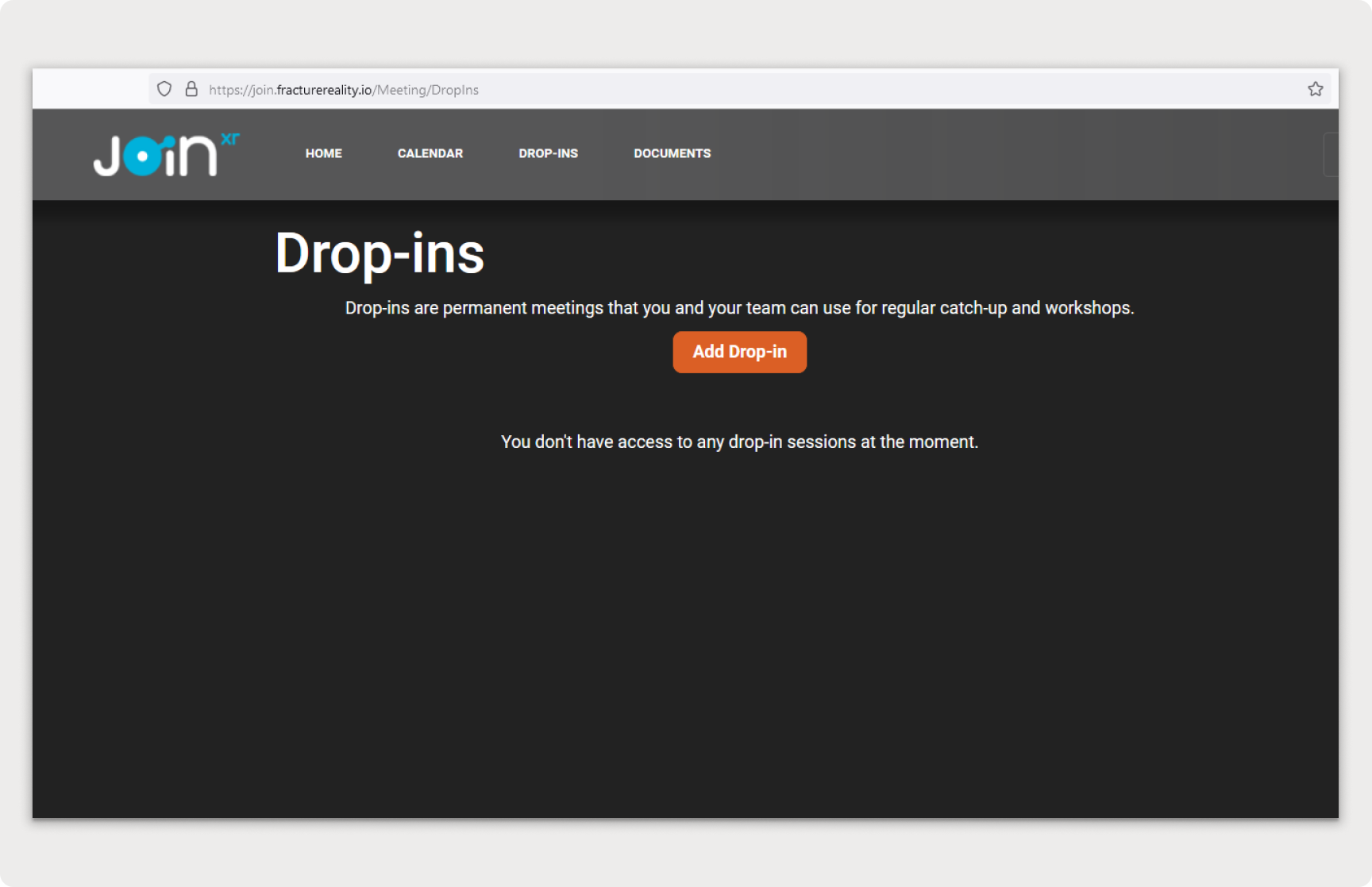
2. Click Add Drop-in
3. Give your drop in a name
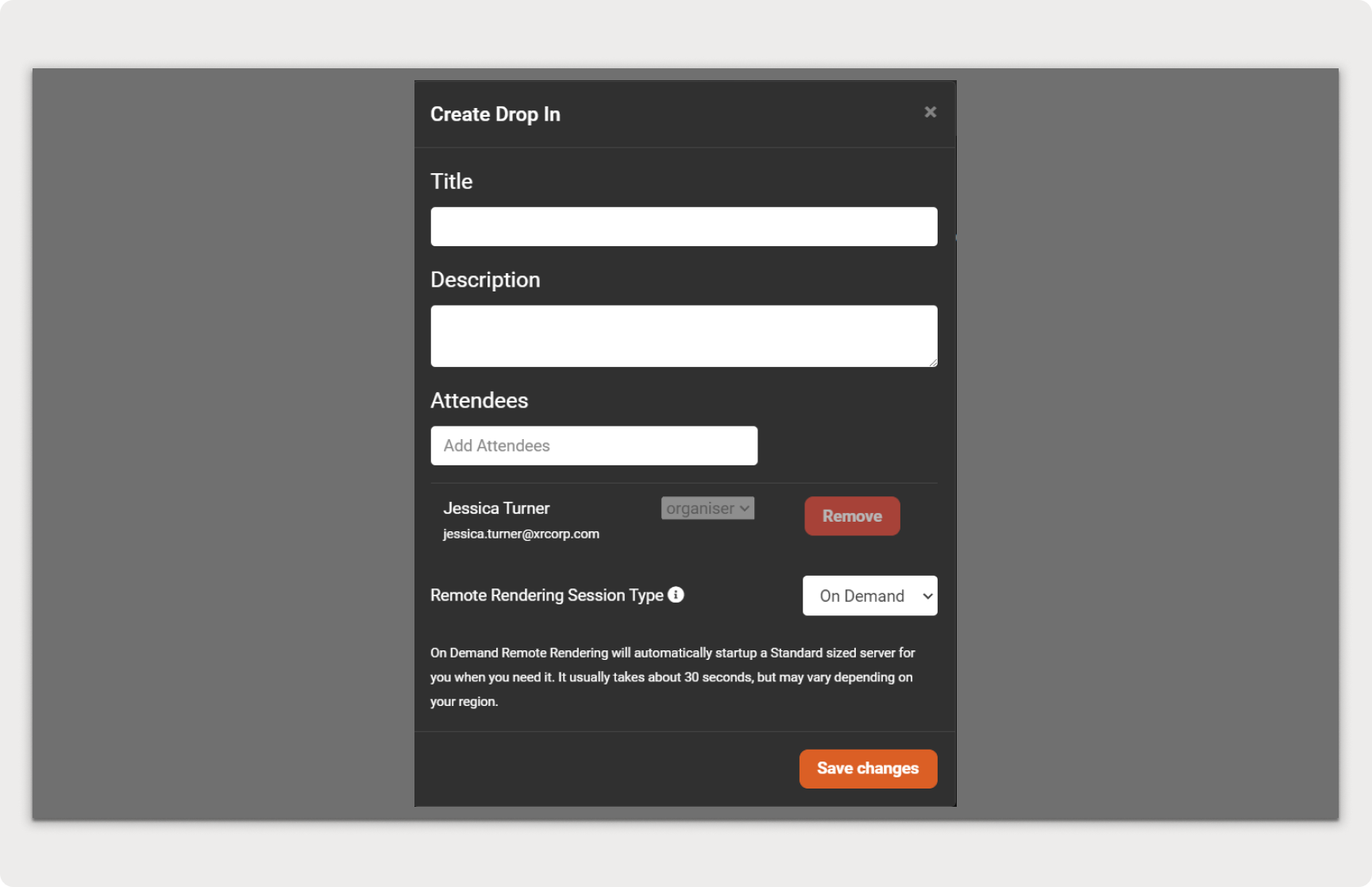
4. Click Save Changes
Congratulations. You have now created a JoinXR Drop-in.
Multi-user meetings
Section titled “Multi-user meetings”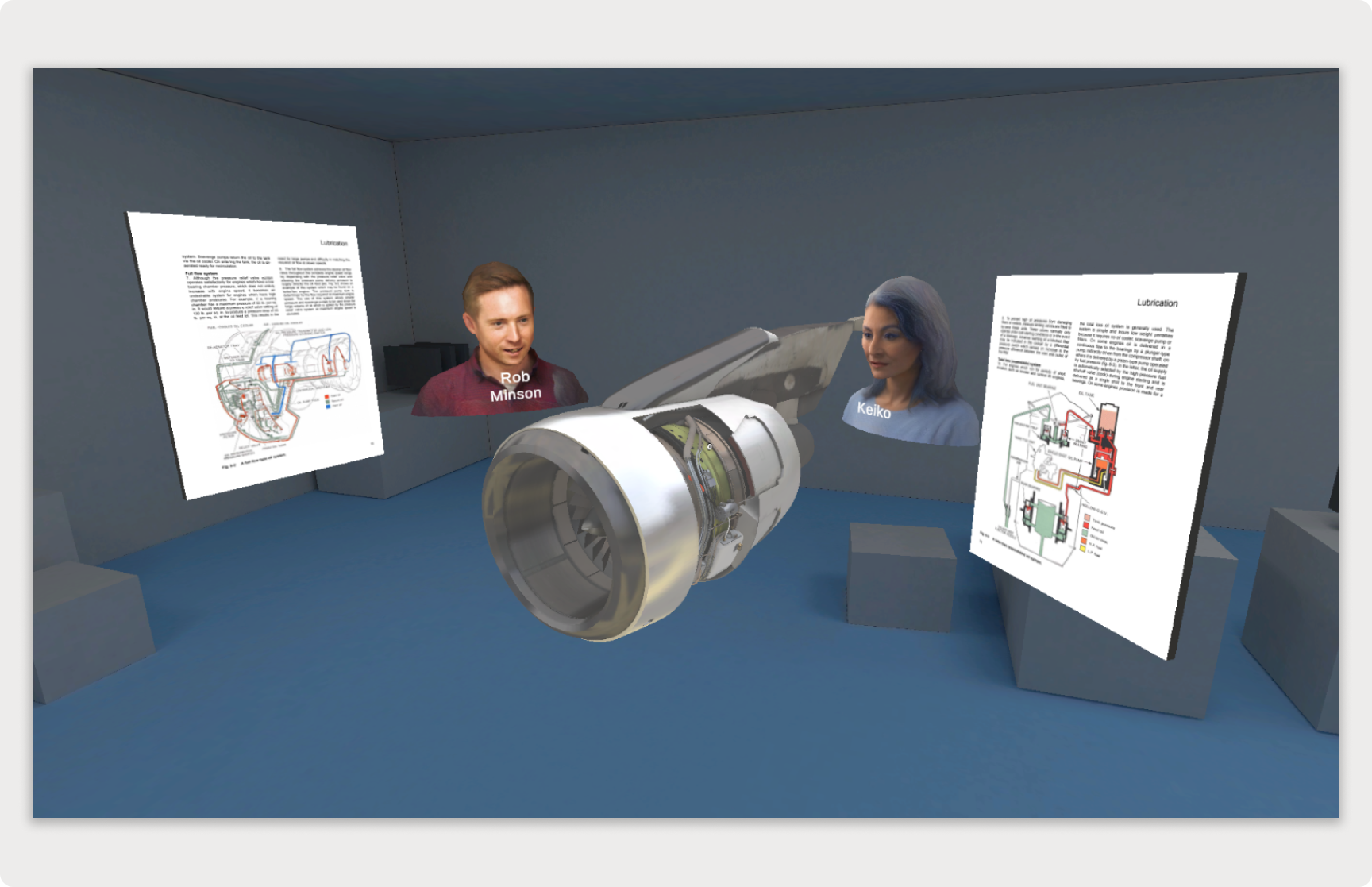
The power of JoinXR lies in its ability to facilitate collaboration with others. You can control who you meet with by managing the permissions on your meetings. Let’s invite someone to our Drop-in meeting.
1. Go join.fracturereality.io
2. Select Drop-ins from the top menu bar
3. Select Edit on the drop-in you created earlier
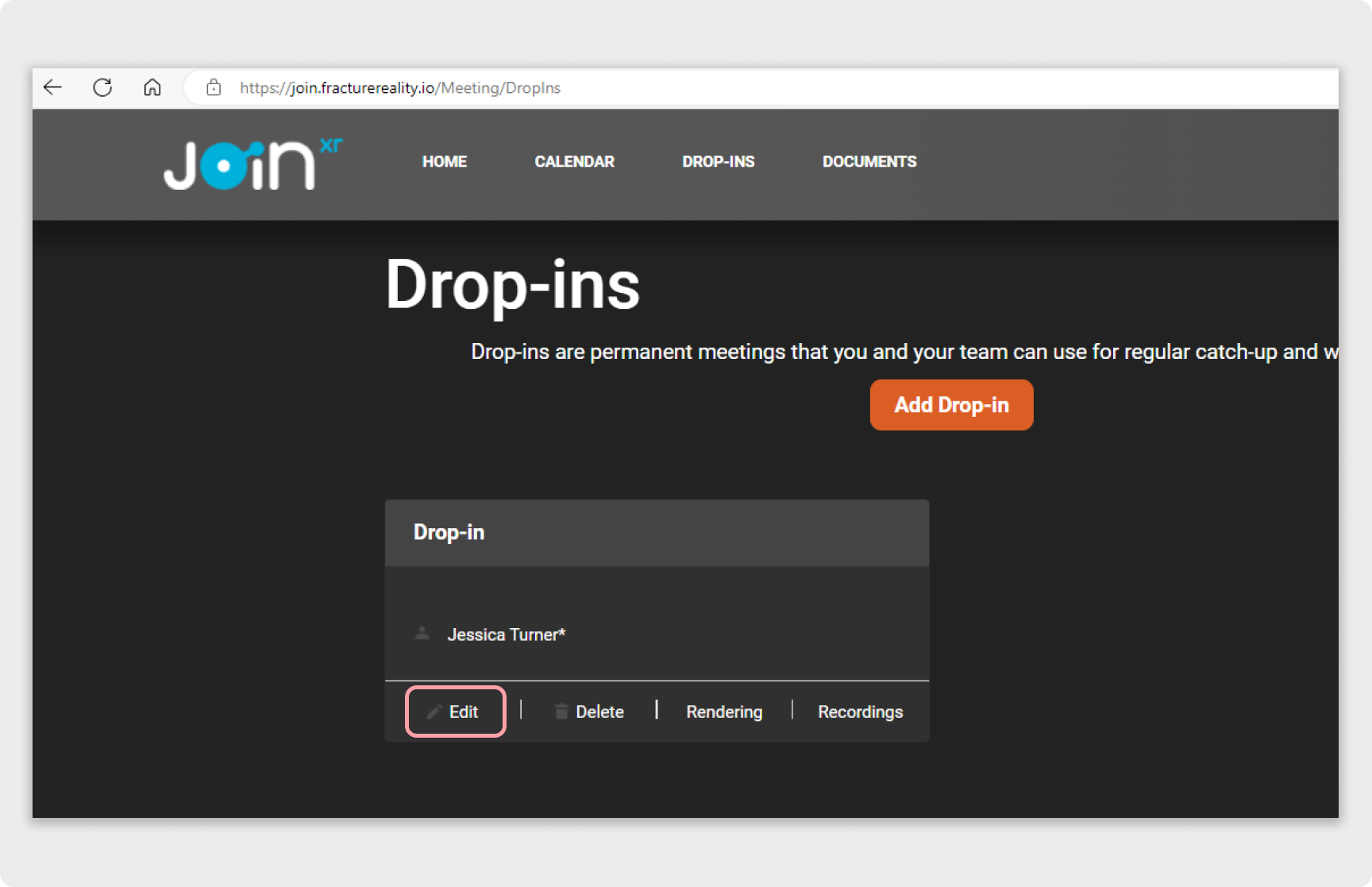
4. Under Attendees enter the email address of the user you want to join your Drop-in and press enter. They will be given the attendee role for your drop-in (You can find more information on meetings roles here)
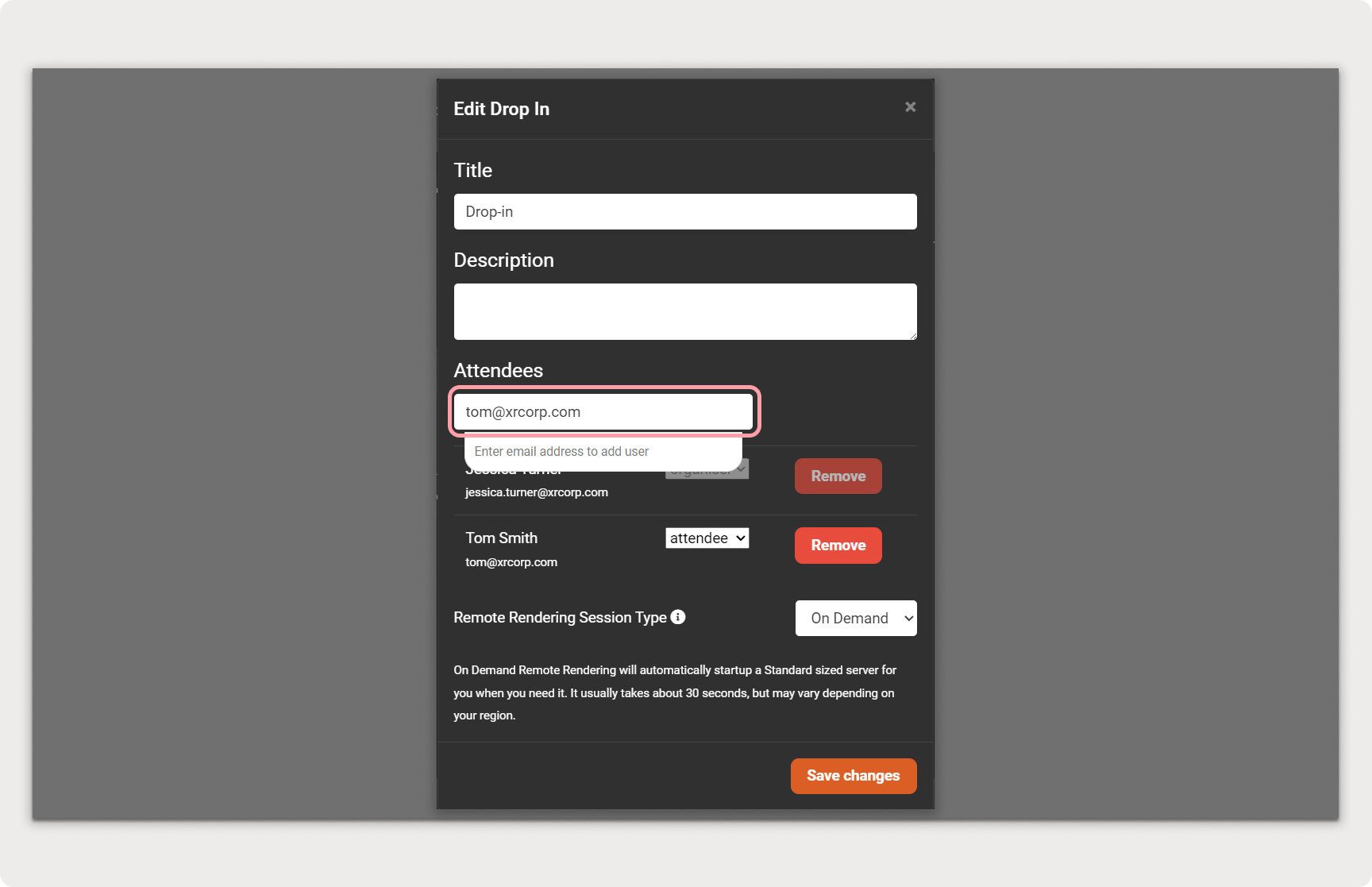
5. Click Save Changes
When the other user launches JoinXR on their device, they can select your Drop-in meeting. If you are both in the Drop-in at the same time, you can see and talk to each other, open documents, and collaborate together.