
Join a Meeting
Learn how to join a Drop-in or Calendar meeting in JoinXR. To find out more about the different types of meetings available, see Creating Meetings.
If you have been invited to a JoinXR meeting, there are two ways ways you can join:
- Using a supported virtual or mixed reality headset
- Using the JoinXR Desktop App
Join a Meeting Using a Headset
Section titled “Join a Meeting Using a Headset”You will need to have paired your device in order to join a meeting and steps 3 & 4 are only applicable to Mixed Reality headsets
1. Open the JoinXR application on your headset
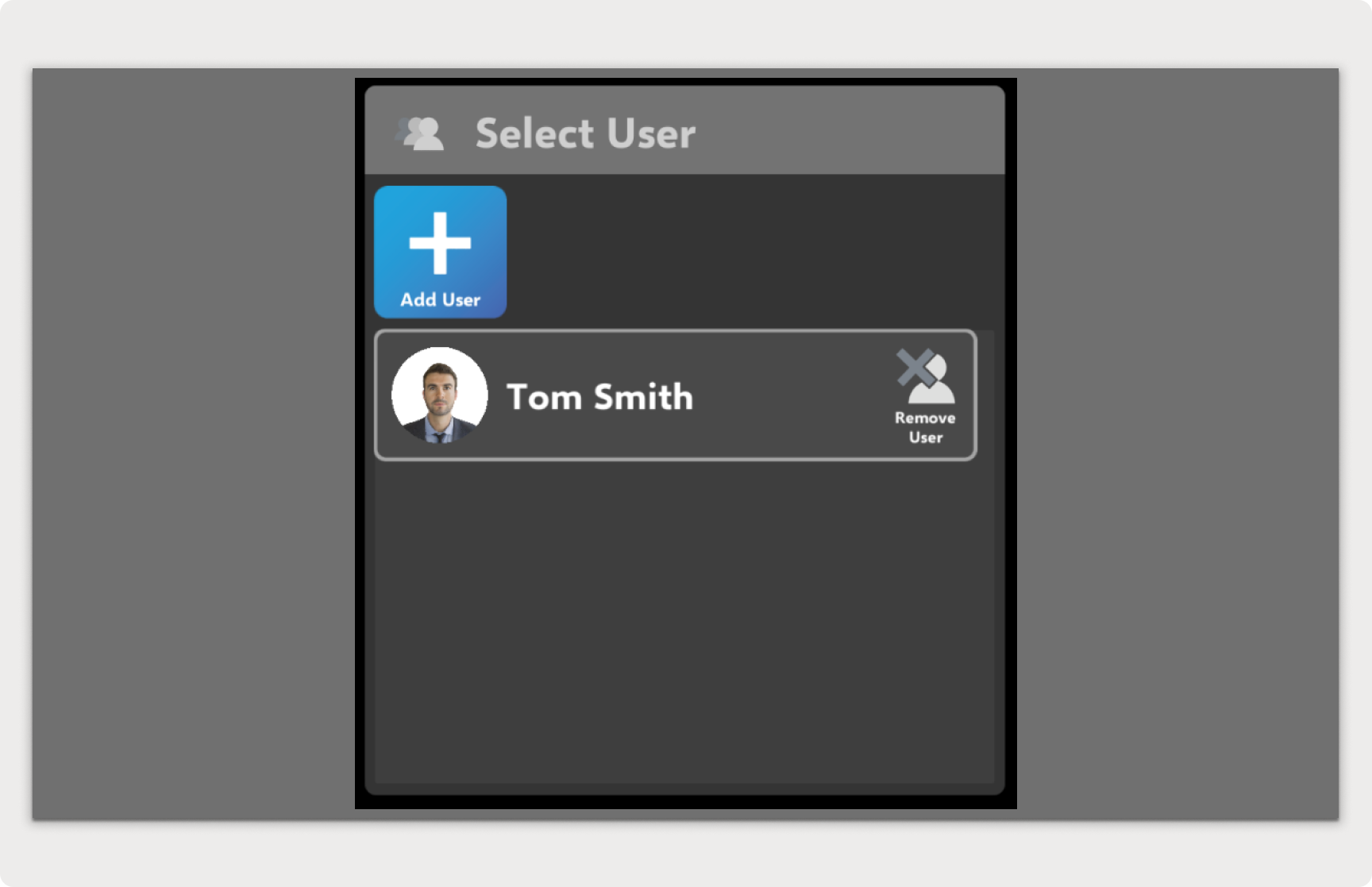
2. Select your user from the Select User menu
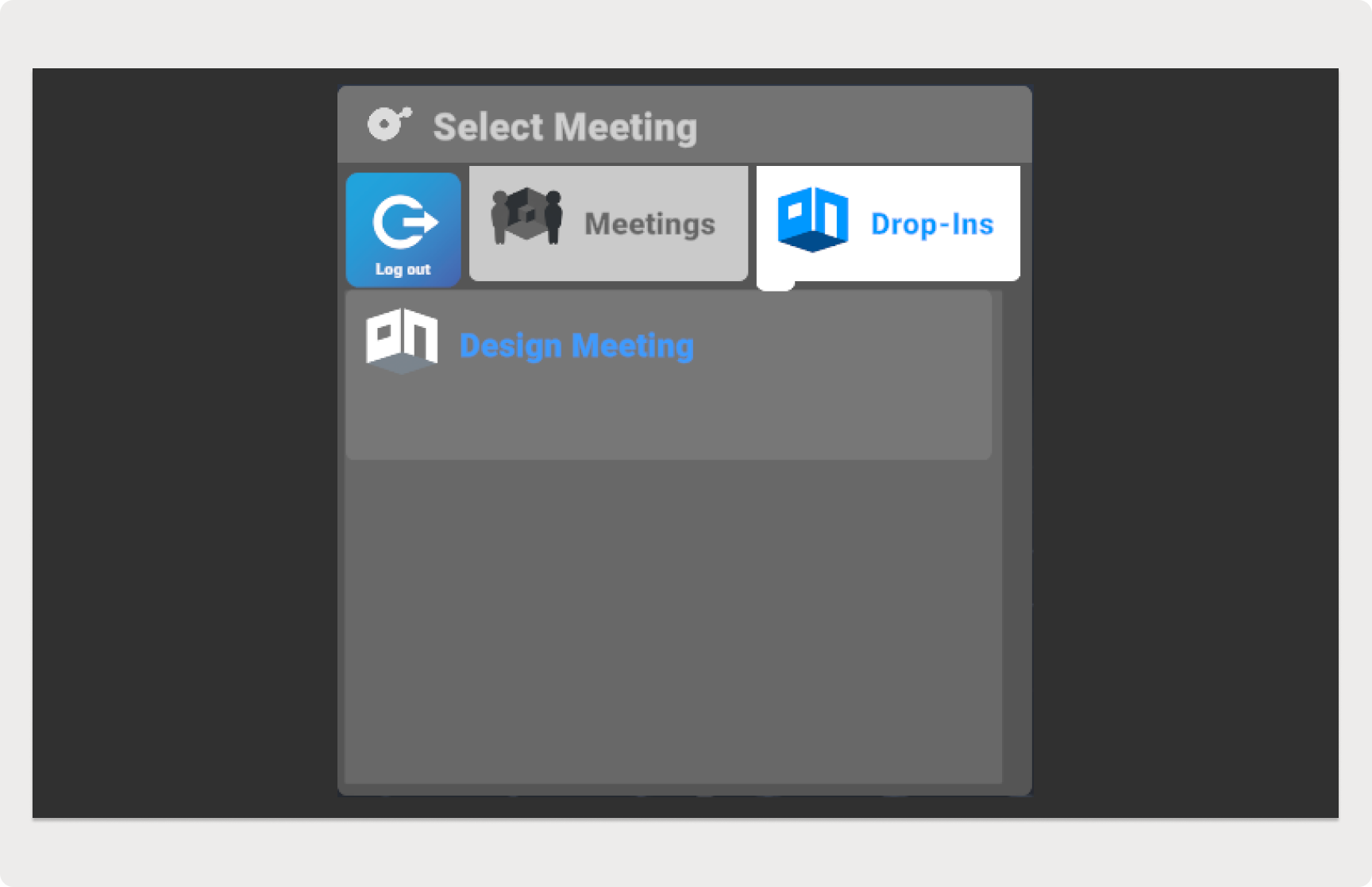
2. Select the Meetings or Drop-ins tab from the Select Meeting menu. You can choose your meeting from these tabs
3. Position the base object (for Mixed Reality headsets only)
4. Select Done when you are happy with the positioning
You have now joined a meeting in your headset.
Join a Meeting Using a Windows device
Section titled “Join a Meeting Using a Windows device”You will need to have downloaded and installed JoinXR Desktop to complete the following steps.
1. Open the JoinXR application on your Windows device
2. Select your user from the Select User menu
2. Select the Meetings or Drop-ins tab from the Select Meeting menu. You can choose your meeting from these tabs
You have now joined a meeting on your computer or laptop.
For further information, see Joining Meetings